Which computer for photography? (last updated August 19, 2026)
In 2026, a recent computer, whether laptop or desktop, PC or Mac, can be perfectly suitable for processing photographs.
A properly calibrated display is obviously preferable if you need precise control over colors, particularly for printing. But it is absolutely not a requirement for taking good photographs or processing them correctly.
For most photographers who publish their images on the web, social media or in the press, as I do, a recent and properly adjusted display can be perfectly adequate. Price differences mainly come down to RAW processing speed, the amount of RAM, SSD speed and, for some tasks, GPU performance.
Desktop or laptop computer?
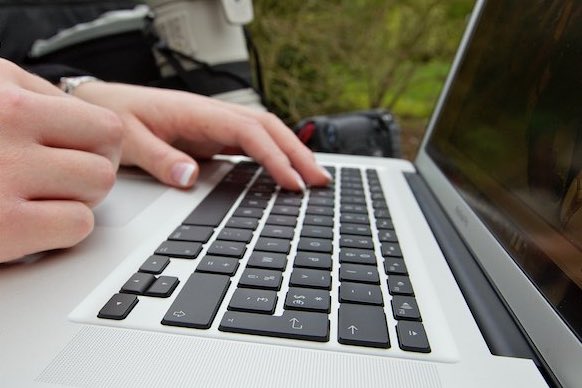
For a professional photographer, there is generally no real choice: they usually need both, although a laptop can be turned into a desktop setup with an external display and hard drives.
A desktop computer for heavy RAW editing, storage and backups. A laptop for working on the move and remaining highly responsive during assignments (fast photo transmission over 4G or Wi-Fi).
Nowadays, however, it is possible to use only a laptop for mobility, together with a desktop workstation at the office that connects to the laptop via USB-C and is itself connected to one or more external displays and one or more external hard drives.
Personally, I currently work on a MacBook Air M1 that is not calibrated with a colorimeter. This does not stop me from processing my photos and sending them for publication. Equipment is important, but it will never take a good photograph in place of the photographer.
For the amateur photographer, there is no performance requirement: post-processing can be done comfortably at home on a desktop computer with a large display. A desktop computer has the advantage of using components that offer better performance at the same price. It is also much more upgradeable than a laptop (processor, motherboard, hard drive and RAM). From a purely financial point of view, a desktop computer is therefore the most sensible solution.
A laptop of course has the advantage of being usable anywhere and taking up less space. It is therefore a matter of preference!
Mac or PC?
Choosing between a Mac and a PC is sometimes a bit like choosing between Canon and Nikon: there are two camps, each with its habits, arguments and loyal followers. And once you have chosen, you often stick with it for a very long time. You get used to your environment, your software, your keyboard, your shortcuts and your way of working. In short, switching camps after several years can be as disruptive as completely changing your camera system!
Personally, I am clearly team Mac and team Canon! I have worked on Mac for a long time and I photograph with Canon. But that obviously does not mean one is better than the other: the best choice is above all the one you are comfortable with and that matches your budget and way of working.
Mac generally emphasizes simplicity, integration between hardware and operating system, and ease of use. PC offers more choice in configurations and often allows you to get a lot of performance for your budget. In both cases, a recent, well-equipped computer will do an excellent job for photography.
Current Macs use Apple Silicon chips. The MacBook Air M5 is an excellent choice for a photographer who prioritizes mobility; the MacBook Pro M5, M5 Pro or M5 Max targets more intensive workloads. For a desktop setup, the Mac mini or Mac Studio allow you to choose your display and storage separately.
On the PC side, the range remains much broader: laptop or desktop, off-the-shelf configuration or custom-built machine, it is possible to tailor the budget and performance precisely to your needs.
The processor
The processor (or CPU: Central Processing Unit) is the brain of the computer. It performs the logical operations contained in software. Processor speed is therefore important for overall computer performance and particularly for RAW photo processing. The number of instructions a processor executes per second is expressed in Gigahertz (GHz). One gigahertz represents one billion cycles per second, so a 3 GHz processor is clocked at 3 billion cycles per second. This figure does not necessarily reflect a processor's real-world performance: other factors come into play. Among these, the most important include processor architecture, manufacturing process, cache memory and bus speed. Post-processing software such as Lightroom Classic and Photoshop is demanding on processor resources. However, it is no longer necessary to systematically target the very high end: a recent mid-range processor already offers excellent performance. For professional use with large RAW volumes, frequent exports or video, a more powerful processor becomes worthwhile.
Storage: SSDs and hard drives
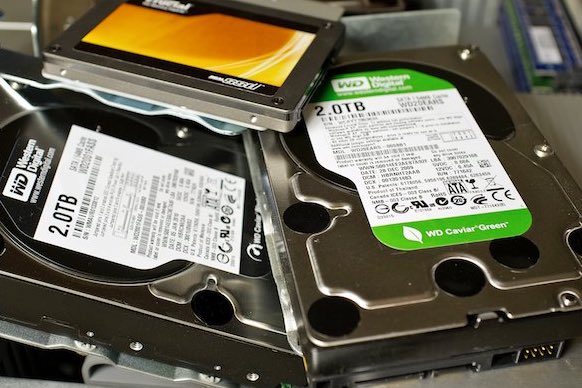
An SSD is now essential for the operating system, software and photo catalog. Modern NVMe SSDs offer access times and transfer rates far superior to older mechanical hard drives. They make computer startup, software loading and photo browsing much faster.
For photography, 512 GB is a reasonable minimum for internal storage, but 1 TB is considerably more comfortable if you keep catalogs, previews and projects on the computer. Photographers working with large RAW volumes should consider 2 TB or more, while using external storage for archives if necessary.
Mechanical hard drives remain useful for inexpensive mass storage of archives, but they should not be considered a backup on their own. A good strategy is to keep at least two copies of your photos, ideally on different types of storage and, for important files, with one copy stored elsewhere or in the cloud.
For laptops, prioritize a fast internal SSD and plan on an external SSD or hard drive for archives. An external SSD connected via USB-C is now fast enough to work directly with many catalogs and RAW files.
RAM
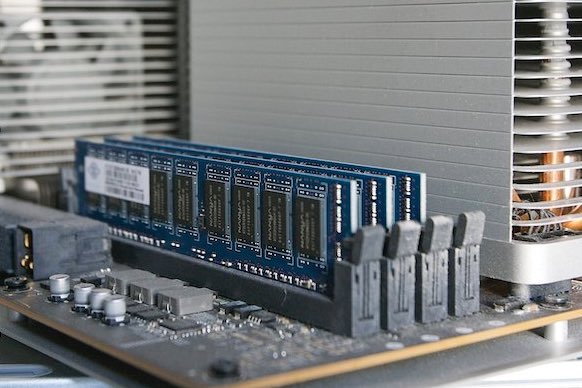
RAM allows data to be read and written and is used while the computer is running to store programs currently in use. The more RAM a computer has, the more programs it can run simultaneously.
In 2026, 16 GB of RAM is a comfortable starting point for photo editing. 32 GB is recommended for large RAW volumes, large catalogs, simultaneous use of several applications or AI features.
The graphics card
Graphics cards were long considered secondary for photo editing, but that is no longer entirely the case. Lightroom Classic and Photoshop now use the GPU for display, certain accelerated operations and several AI features.
For standard photography use, there is no need to buy a very high-end graphics card: a recent GPU with 6 to 8 GB of video memory is already a good starting point on PC. For advanced processing, particularly AI noise reduction such as DxO DeepPRIME XD3, video or large RAW volumes, more graphics memory can be useful. On Mac, Apple Silicon chips integrate the GPU and unified memory directly.
Also check the available video outputs if you want to use several displays simultaneously. Adobe recommends 16 GB of RAM or more for Lightroom Classic and Photoshop, and greater GPU resources for full acceleration and certain AI features.
The LCD display
For photography, there is no need to obsess over the display. A recent model with a good panel, adequate brightness and a comfortable resolution will do the job very well. A 27-inch 4K display is an excellent compromise, but it is obviously not mandatory.
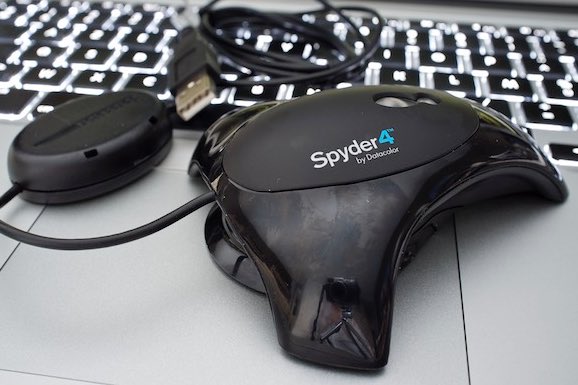
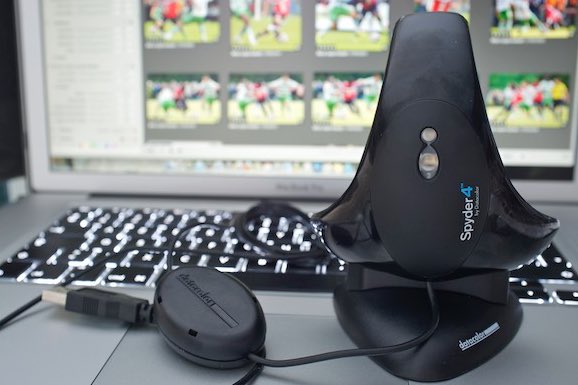
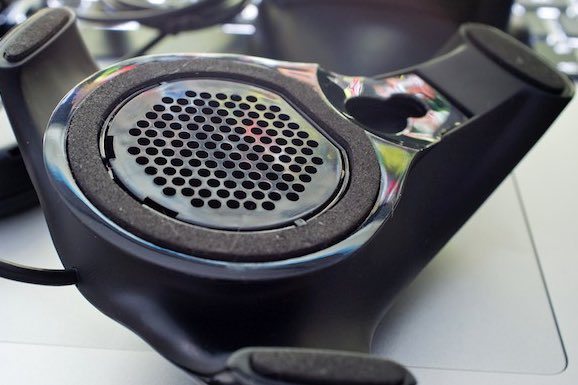
Personally, I work on the display of my MacBook Air M1 without a calibration device, and this does not stop me from processing my photos and sending them for publication. I did own a Datacolor Spyder 4, which I used with an older MacBook Pro. It has been sitting in a drawer for several years now: Datacolor no longer maintains the Spyder 4 software and it is no longer compatible with recent versions of macOS. In other words, my old Spyder 4 is not much use with my current Mac! If you do a lot of printing or need very precise color management, calibration can be worthwhile. Otherwise, there is no need to turn it into a religion: the most expensive display will not take better photographs for you.
Specialized ranges from manufacturers such as Eizo, BenQ or ASUS ProArt can be interesting for those who genuinely need advanced color management, but they are absolutely not essential for beginners or normal photography use.
Which computer should you choose?
Now that we have established the choice between Mac and PC, let's simply look at which configuration suits your needs. There is no need to buy the most powerful machine: prioritize sufficient RAM, a fast SSD, a recent processor and, if you use demanding processing such as DxO DeepPRIME XD3, a sufficiently capable GPU.
Here are some typical configurations to help you assess your needs and budget.
And what about a laptop PC?
If you like the format and simplicity of a MacBook but prefer Windows, there are now some very good alternatives. The choice is broad, from lightweight ultraportables close to the MacBook Air to more powerful laptops aimed at photographers who want performance closer to a MacBook Pro.
As a counterpart in the spirit of the MacBook Air, a Lenovo Yoga Slim 7i Aura Edition or an ASUS Zenbook is an interesting option: thin, light machines suited to everyday photo processing. To get closer to a MacBook Pro, the ASUS ProArt P16 is particularly interesting: it is designed for creators, with a high-resolution OLED display and, depending on configuration, a dedicated NVIDIA GPU. This is the type of machine I would look at for someone who uses Lightroom, Photoshop or processing such as DxO DeepPRIME XD3 extensively. Recent comparisons also place the ProArt P16 and Lenovo Yoga Pro 9i among the high-end MacBook alternatives for creative work.
The advantage of a laptop PC is also the ability to choose the exact level of performance. But be careful: at equivalent performance levels, a laptop with a large GPU can be heavier, noisier and less autonomous than an ultraportable. So choose according to your use rather than comparing specifications alone.
| PC | Entry level | Mid-range | High-end |
| Processor | Ryzen 5 / Core i5 récent | Ryzen 7 / Core i7 récent | Ryzen 9 / Core Ultra 7 ou 9 |
| RAM | 16 GB | 32 GB | 64 GB |
| Storage | SSD NVMe 512 GB | SSD NVMe 1 TB | SSD NVMe 2 TB |
| GPU | 6 to 8 GB VRAM | 8 Go de VRAM | 12 to 16 GB VRAM |
| Use | Occasional photography | Regular / professional use | Large RAW volumes, AI, video |
| Indicative budget | €700 to €1,000 | €1,200 to €1,800 | €2,000 and up |
| Mac | MacBook Air | MacBook Pro | Desktop Mac |
| Chip | M5 | M5 / M5 Pro / M5 Max | Mac mini / Mac Studio |
| Memory | 16 GB minimum | 24 GB and above recommended | 24 or 32 GB and above |
| SSD | 512 GB minimum | 1 TB recommended | 512 GB to 1 TB + external storage |
| Use | Mobile, photojournalism, demanding amateur | Professional, large RAW volumes, video | Desktop setup, large volumes |
| My choice | Excellent mobility / performance balance | The demanding professional’s choice | For working at a desk |
Some laptops worth considering
| Laptop PC | Equivalent | Profile | Key point |
| Lenovo Yoga Slim 7i Aura Edition | MacBook Air | Mobility, photojournalism, everyday photography | Thin, light and long-lasting |
| ASUS ProArt P16 | MacBook Pro | Intensive photography, video, DeepPRIME XD3 | OLED display and dedicated GPU depending on configuration |
| Lenovo Yoga Pro 9i | MacBook Pro | Creative work, large RAW volumes, mobility | Very powerful, several configurations |
My advice: for most photographers, there is no need to look for the most expensive machine. A recent computer with 16 GB of RAM, a fast SSD and a properly adjusted display already provides an excellent foundation. 32 GB becomes useful for large RAW volumes and demanding processing, but it is not essential for everyone. If you use advanced processing intensively, particularly AI noise reduction such as DxO DeepPRIME XD3, work with very large files or also shoot video, a more powerful configuration will mainly save you time. For standard photography use, there is no need to overspec your computer.